
Opales Pattern: locating a part
Opales Pattern finds a part, a logo or a mark in the image, at any angle, from its contours. Several models (patterns) can be searched for together; each one keeps its own training image.
Training a pattern
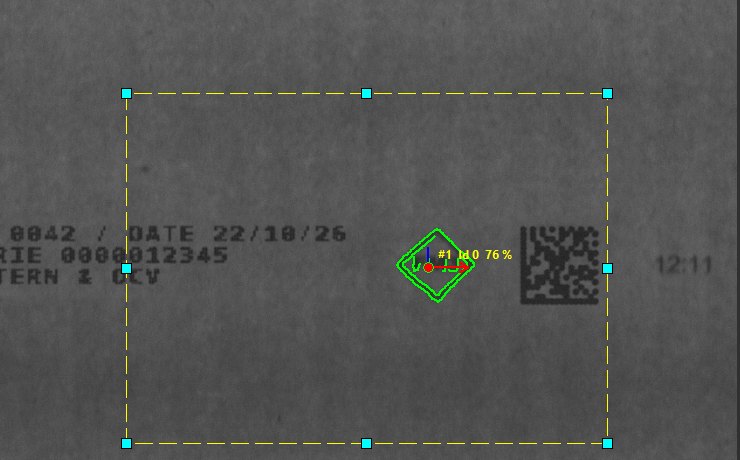
“Prendre l'image” (take the image) button: the image of the search area becomes the pattern's training image. The green rectangle marks the trained part; the cross and the arrow give the pick point and the reference angle. All of them can be moved with the mouse.
The trained contours are shown in green. There is no “train” button: a modified pattern is retrained automatically before the test and before OK.
Masking what varies
The “Masque et zones d'importance” (mask and importance zones) bar provides a brush: red = ignored (neither trained nor counted), aqua = clutter (nothing is expected here: an edge found lowers the score), zones Z1 to Z5 = parts that count 1.5 to 16 times more.
Here the letters “FM3”, which change from one label to the next, are painted red: only the diamond stays trained (5 contours instead of 7). The “i” badge next to the brush recalls the role of each colour.
Testing on the image
The “Tester” (test) arrow searches for all active patterns in the instruction's area. The “Dernière exécution” (last run) tab shows each part found: contours found, pick point, pattern number and score. The search area (yellow dashes) can be moved and resized with the mouse; it is written back to the program line on OK.
On the right, the settings: training contrasts, score threshold, angle range (a narrow range, or a fixed angle, speeds up the search), number of parts, whether clutter is taken into account. Each setting has its own “i” badge.
How the tool searches
The large “i” badge at the top right explains the search, with the figures of the open tool: coarse extraction from the image, vote of each pattern, descent to the fine granularity around the candidates, sub-pixel fitting and score, then sorting between patterns.
Good to know
- A pattern can be paused, or duplicated as a mirror image or at another scale (+5%, -10%…).
- Existing PatMax models (.vpp) can be converted into Opales Pattern tools.
- Results: pick point, score, angle, coverage, pattern number, clutter, fit error, contrast; all parts in the object list.
- Instruction help:
OPAPMSM,OPAPMRM,OPAPMEM.
